Open Settings
You’ll need to review and modify the default settings for the app the very first time you use it.
Open the settings by tapping on the three dots in the upper right corner of the login screen. Tap the Settings item in the menu.
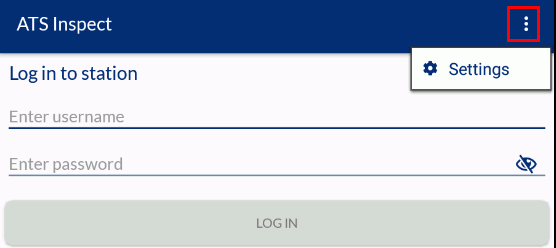
Always tap Save when you change settings to ensure the updates are kept.
Specify Data Service Endpoint
For the app to be able to connect to Data Service, you might have to configure the machine Data Service is running on. See section ‘Data Service machine configuration’ for further details.
The most important setting is the endpoint for Inspect Data Service; without this endpoint you won’t be able to use the app at all.
In the Settings select the Data Service tab.
Enter the Hostname and Base port for the data service.
Tap Test Connection to ensure the settings are correct.
If they are, tap Save to store the data service endpoint.
Modify Speech Settings
There are several settings that can help improve the effectiveness of voice recognition within the app.
For now, just leave the default settings. In the future, depending on the amount of traffic expected for the speech recognition, and the global location of the app’s user, these may have to be modified.
|
Setting |
Description |
|
Enable speech |
Enable to allow voice recognition to be used. |
|
Show wrong voice message popup |
|
|
Load preferred language from user preference |
|
|
Speech subscription key |
|
|
Speech region |
|
|
Language Understanding Subscription Key |
|
|
Language Understanding Service Region |
|
|
Language Understanding App ID |
|
Modify Login Method
This setting defines whether you will need to login using a username and password or just a user code.
In the Settings select the Other tab.
Under Login mode select either Username and password or User code.
Auto Load Unit After Scan
This setting controls whether a unit is automatically loaded after its identifier has been scanned. If it’s enabled, after scanning a unit identifier, if a unit with that identifier is found, it will be automatically loaded.
If unchecked, the identifier will be scanned and put into the input field. The user will then need to select ‘Goto’ button (arrow) to load the unit.
In the Settings select the Other tab.
Enable Auto load unit after scan.
Currently, the app supports only barcode and QR code scanning, but in future versions more scanning options will be added (e.g. NFC).
Specify Preselected Station
If a station is preselected here, the Select station screen will be skipped and the preselected station will be used in the app.
If the option [No station] is selected here, the Select station screen will be shown for the user to select a station after logging in.
In the Settings select the Other tab.
Select a station from the drop-down list.